YouTube is a video streaming service provided by Google in which you can upload and release a video, or offer a live streaming of an event.
If you belong to students and faculties of the University of Tokyo, you can use YouTube with your ECCS Cloud Email account. With your ECCS Cloud Email account, you can share a video of a lecture, a livestreamed ceremony and any other content only with students and faculties of the University of Tokyo.
This page describes how to upload a video and offer a live streaming and how to watch contents shared only with students, faculty and staff of the University of Tokyo. If you need to know basic procedures to use Youtube, please visit Google’s official help page.
To Upload a Video and Offer a Live Streaming
Follow the procedures below to upload a video and offer a live streaming on YouTube with your ECCS Cloud Email account. Please create your channel first and upload a video, complete video privacy settings or offer a live streaming according to your purpose.
About Your Channel and Account
To upload a video or offer a live streaming on YouTube, you need your channel linked to your account.
There are two kinds of YouTube channels: created with a personal account and created with a brand account. Also, on a channel created by a personal account, you can share contents only with students and faculties of the University of Tokyo. If you upload a video or offer a live streaming only for students and faculties of the University of Tokyo, you need to use a channel created with your personal ECCS Cloud Email Account (instead of the brand account of the University of Tokyo). On the other hand, on a channel created with a brand account, you can manage the account with other members and create plural channels with one account.
To Create a Channel
Before uploading a video or offering a live streaming, you need to create your channel with your ECCS Cloud Email account. Follow the procedures below to log in YouTube with your ECCS Cloud Email account and create a channel with your personal account. To create a channel with a brand account, please visit “Create a YouTube channel”>“Create a channel with a business or other name.”
- Sign in YouTube with your ECCS Cloud Email account.
- Click “Create” on the upper right of the screen.

- Click “Upload video” or “Go Live.”
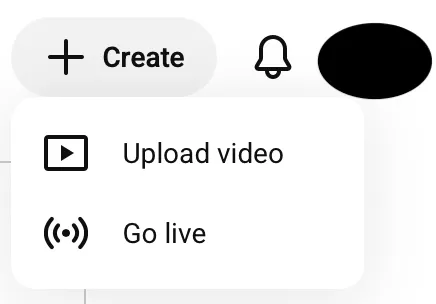
- Enter the profile of your channel.
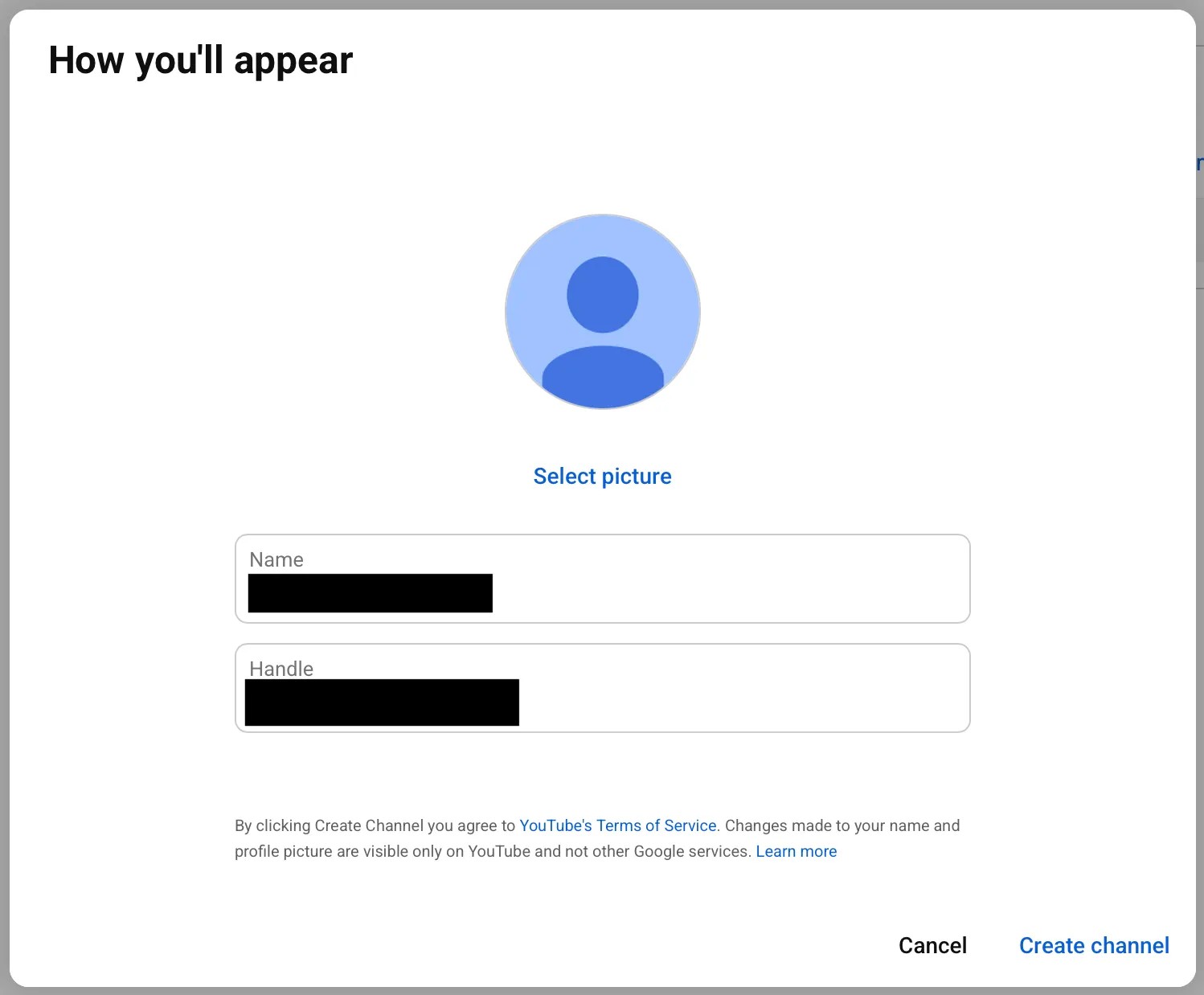
- Click “Create channel.”
To Upload a Video
To understand the basic procedures to upload a video on YouTube, please check “YouTubeに動画をアップロードする.”
To Complete Video Privacy Settings
To understand the differences between “Public”, “Private” and “Unlisted” and the procedures to share contents only with students and faculties of the University of Tokyo, please check “YouTube動画の公開範囲を設定する.”
To Offer a Live Streaming
To turn on the option of live streaming and start it, please check “クラウドメールアカウントでのYouTubeライブ配信方法.” Also, it takes around 24 hours to turn on the option of live streaming after your request.
Furthermore, you can livestream a meeting or a webinar on Zoom through Youtube. Please check “ZoomミーティングやウェビナーをYouTubeでストリーミング配信する” for more detail.
To Watch a Video Only Shared with Students, Faculty and Staff of the University of Tokyo
To watch a video only shared with students and faculties of the University of Tokyo, you need to sign in YouTube with your ECCS Cloud Email account.
Each of the error messages below will be displayed when you try to watch such a video without signing in or with another account.
- “Private video: If the owner of this video has granted you access, please sign in”(The “Sign in” banner IS in the center of the display)
- “Video unavailable: This video is private”(The “Sign in” banner is NOT on the display)
Please follow the procedures below to watch the video with your ECCS Cloud Email account in each case.
When The Video Is Displayed as “Private”
When you try to watch a video only shared with students and faculties without signing in, the video will be displayed as “Private.”
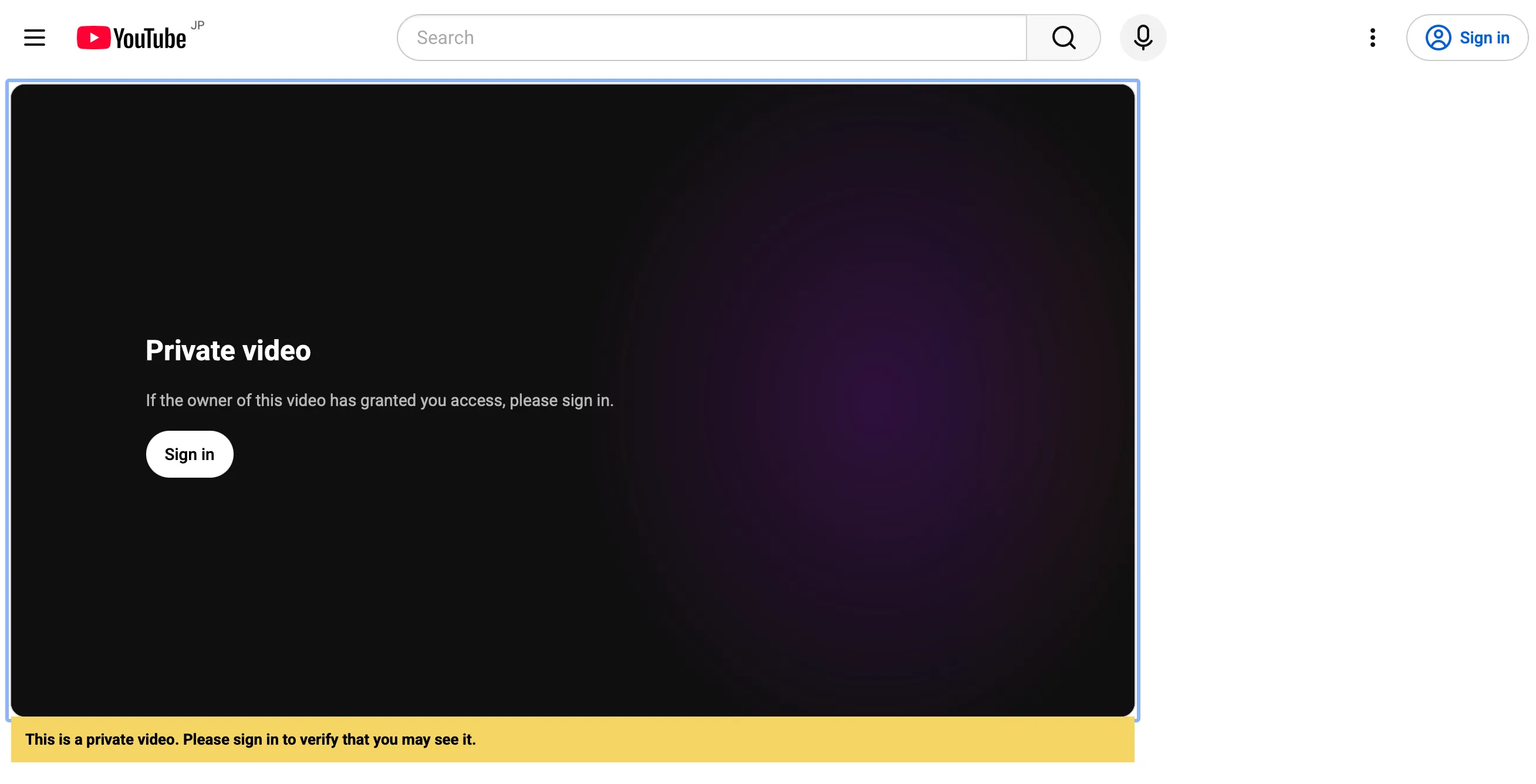
In this case, please follow the procedures below to log in and watch the video.
- Click the “Sign in” banner in the center of the display.
- If there is no “Sign in” banner on the display, please check “When The Video Is Displayed as ‘Video unavailable’.”
- Enter your ECCS Cloud Email address (one setup with the username of your choice, or your 10-digit Common ID +
@g.ecc.u-tokyo.ac.jp) on Google’s sign in screen. - Sign in your UTokyo Account to watch the video.
When The Video Is Displayed as “Video unavailable”
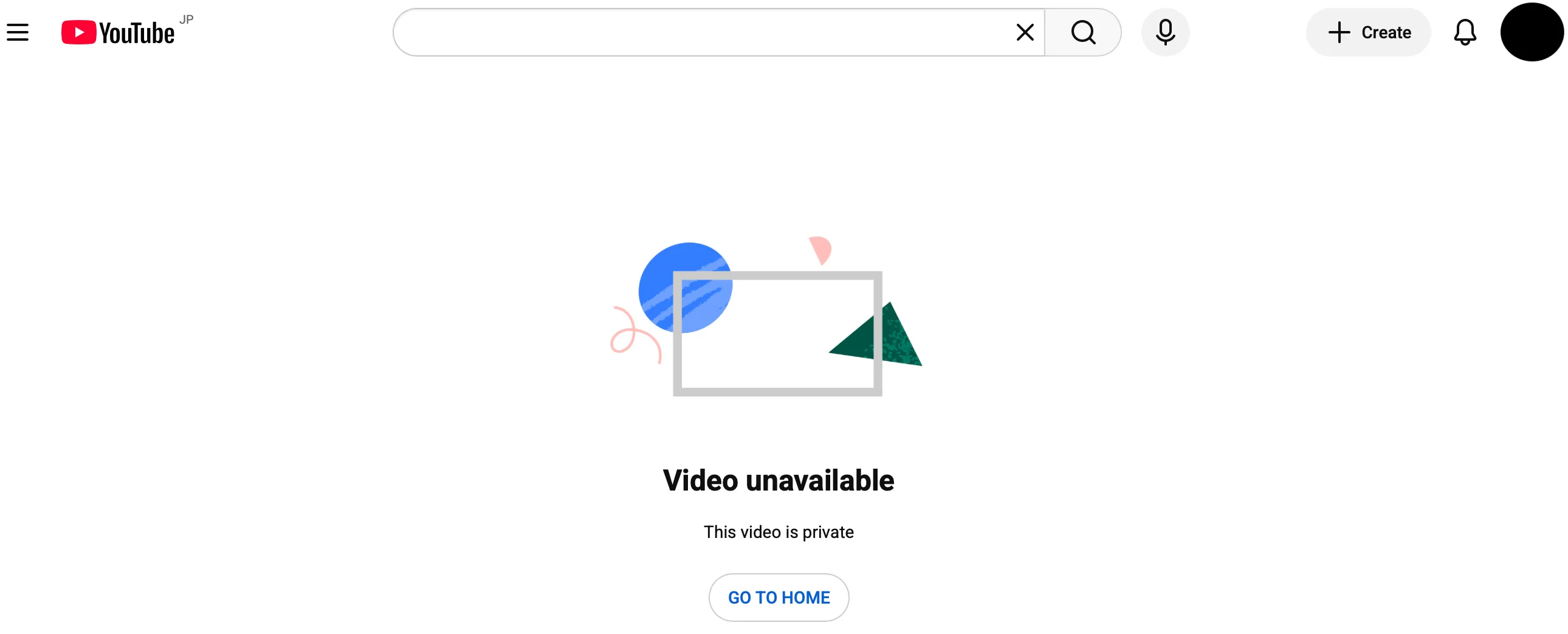
This error message will be displayed in the cases below.
- You have signed in with an account other than your ECCS Cloud Email account..
- You use another account to watch YouTube although you have signed in with your ECCS Cloud Email account.
In these cases, please follow the procedures below to sign in YouTube with your ECCS Cloud Email account.
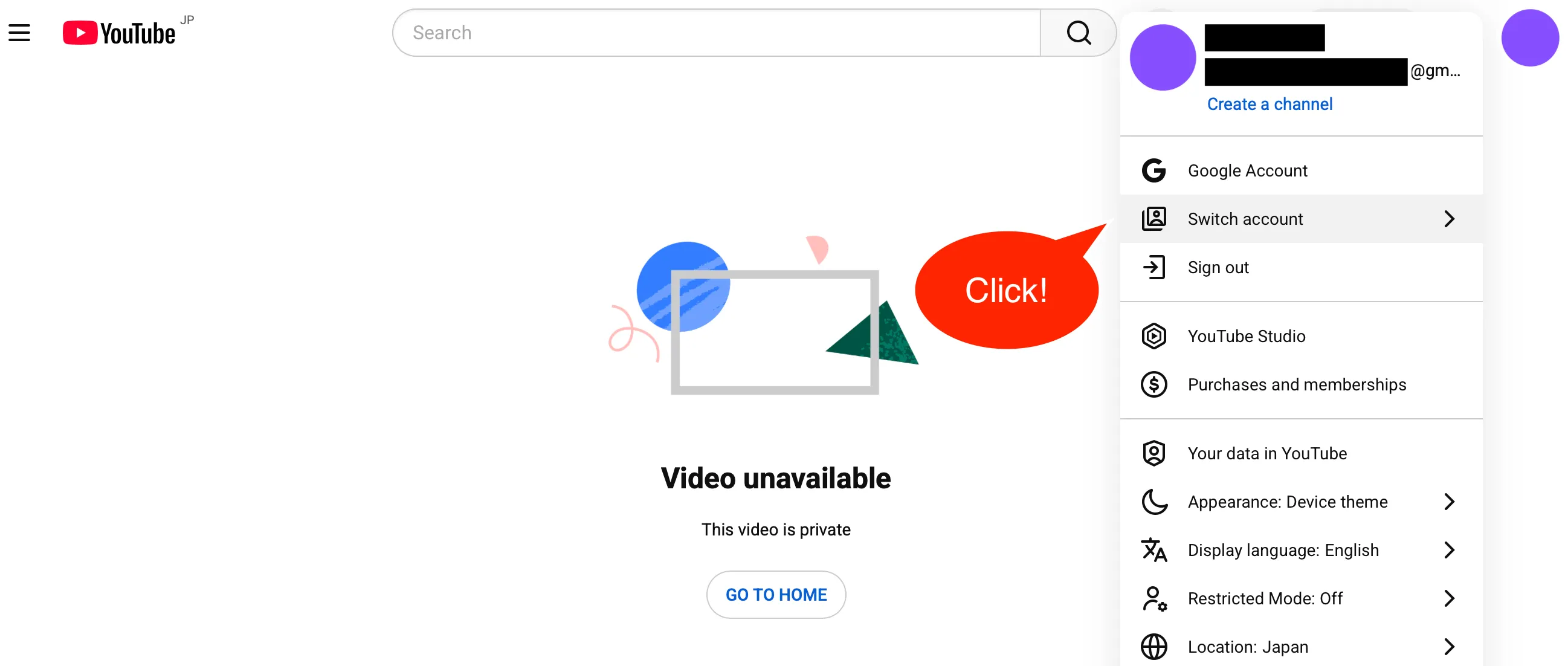
- Visit the top page of YouTube and click the icon of your account on the upper right of the screen (if you have not set up an image as your icon, part of your name or your initial may be displayed as your icon).

- Click “Switch account.”
- Select your ECCS Cloud Email account (the account with the domain
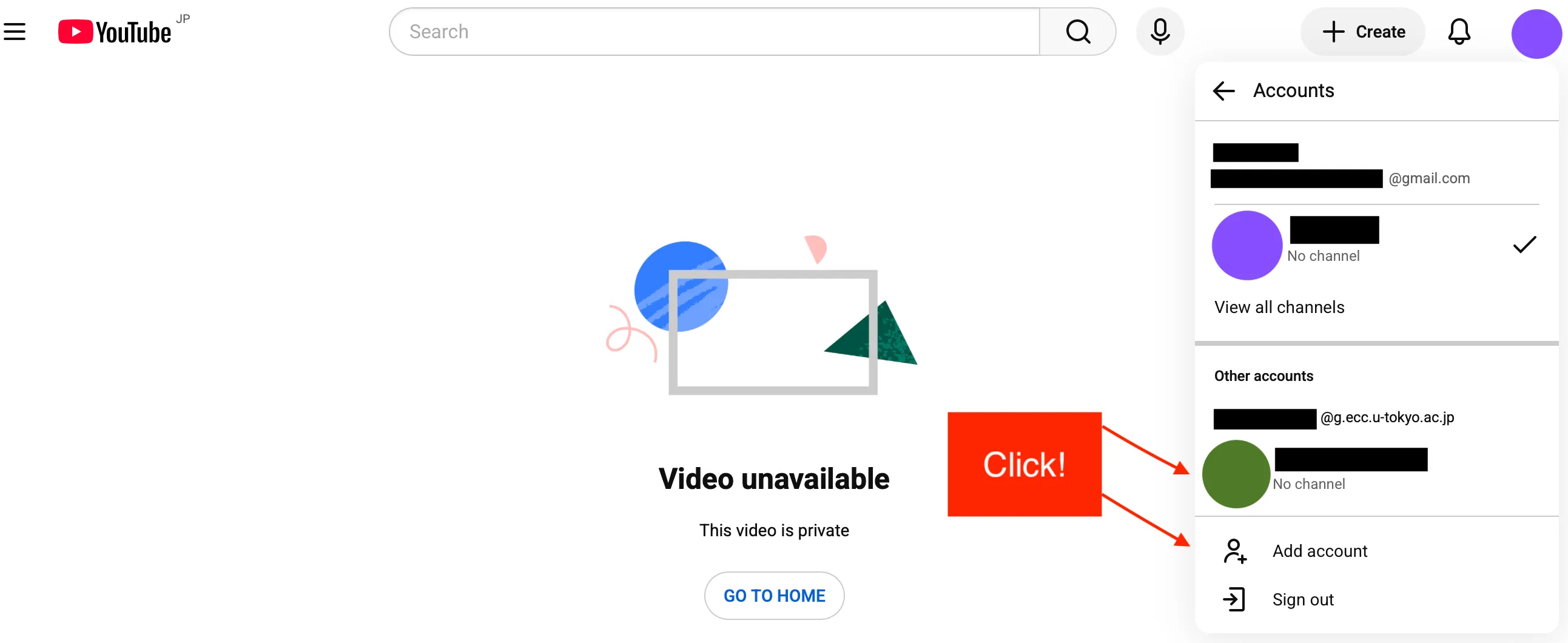
@g.ecc.u-tokyo.ac.jp) if it is on the displayed list of your accounts used to sign in.- If your ECCS Cloud Email account is not on the list, please select “Add account,” sign in with your ECCS Cloud Email account described as “[When The Video Is Displayed as ‘Video unavailable’]” and access the video again.
 4. Access the video again.